CLI Reference
Complete command-line interface reference for the Wealth Trading Bot
Overview
The wealth trading bot features a comprehensive command-line interface (CLI) built with clap. The CLI provides subcommands for all major operations, making it easy to manage the bot from the terminal.
Exchange Names
When specifying exchanges in CLI commands, use lowercase names:
| CLI Name | Full Name (API responses) |
|---|---|
binance | BinanceFutures |
bybit | BybitPerpetualsUsd |
hyperliquid | HyperLiquid |
aster | AsterFutures |
Global Options
Available on all commands:
-v                         # Info-level logging
-vv                        # Debug-level logging
-vvv                       # Trace-level logging (very verbose)
-q, --quiet                # Error-level only (warnings suppressed)
-l, --log-file <FILE>      # Path to log file (default: stdout)
-c, --config <FILE>        # Path to custom configuration file
-h, --help                 # Show help information
-V, --version              # Show version information
Environment Variables:
WEALTH__OBSERVABILITY__LOG_FILE   # Default log file path
WEALTH_CONFIG                      # Default configuration file path
Commands
wealth run - Run the Trading Bot
Start the trading bot. All configuration is managed via config.toml or environment variables.
Usage:
wealth run [OPTIONS]
Options:
--enable-discovery # Enable dynamic pair discovery (overrides config)
Note: The run command is required. Running wealth without a command displays help.
Configuration:
All runtime settings are configured via:
- Config file:
config.toml(persistent settings) - Environment variables:
WEALTH__*prefix (see Configuration Guide)
Common Configuration Examples:
# Paper trading mode (via environment variable)
export WEALTH__EXECUTION__MODE=paper
wealth run

# Live trading mode (via environment variable)
export WEALTH__EXECUTION__MODE=live
wealth run

# Custom metrics port
export WEALTH__OBSERVABILITY__METRICS_PORT=8080
wealth run

# OpenTelemetry export
export WEALTH__OBSERVABILITY__OTLP_ENDPOINT=http://localhost:4317
export WEALTH__OBSERVABILITY__SERVICE_NAME=wealth-prod
export WEALTH__OBSERVABILITY__ENVIRONMENT=production
wealth run
Examples:
# Run with default settings from config.toml
wealth run

# Show help
wealth

# Log to file
wealth run --log-file /tmp/wealth.log

# Verbose logging with file output
wealth run -v --log-file /var/log/wealth.log

# Very verbose (debug level)
export WEALTH__OBSERVABILITY__SERVICE_NAME=wealth-prod
export WEALTH__OBSERVABILITY__ENVIRONMENT=production
wealth run -vv
Environment Variables:
WEALTH__EXECUTION__MODE- Execution mode: "paper", "live", or "dryrun" (default: paper)WEALTH__OBSERVABILITY__METRICS_PORT- Metrics port (default: 9090)WEALTH__OBSERVABILITY__METRICS_BIND_ADDRESS- Bind address (default: 0.0.0.0)WEALTH__OBSERVABILITY__OTLP_ENDPOINT- OpenTelemetry OTLP endpoint URL (e.g., http://localhost:4317)WEALTH__OBSERVABILITY__SERVICE_NAME- Service name for telemetry resource attributes (default: wealth)WEALTH__OBSERVABILITY__ENVIRONMENT- Environment name for telemetry resource attributes (default: development)
Note: All configuration can also be set in config.toml. See Configuration Guide for details.
wealth dashboard - Interactive TUI Dashboard
🖥️ Status: Fully implemented (requires tui feature)
Run the trading bot with an interactive terminal dashboard for real-time monitoring and control.
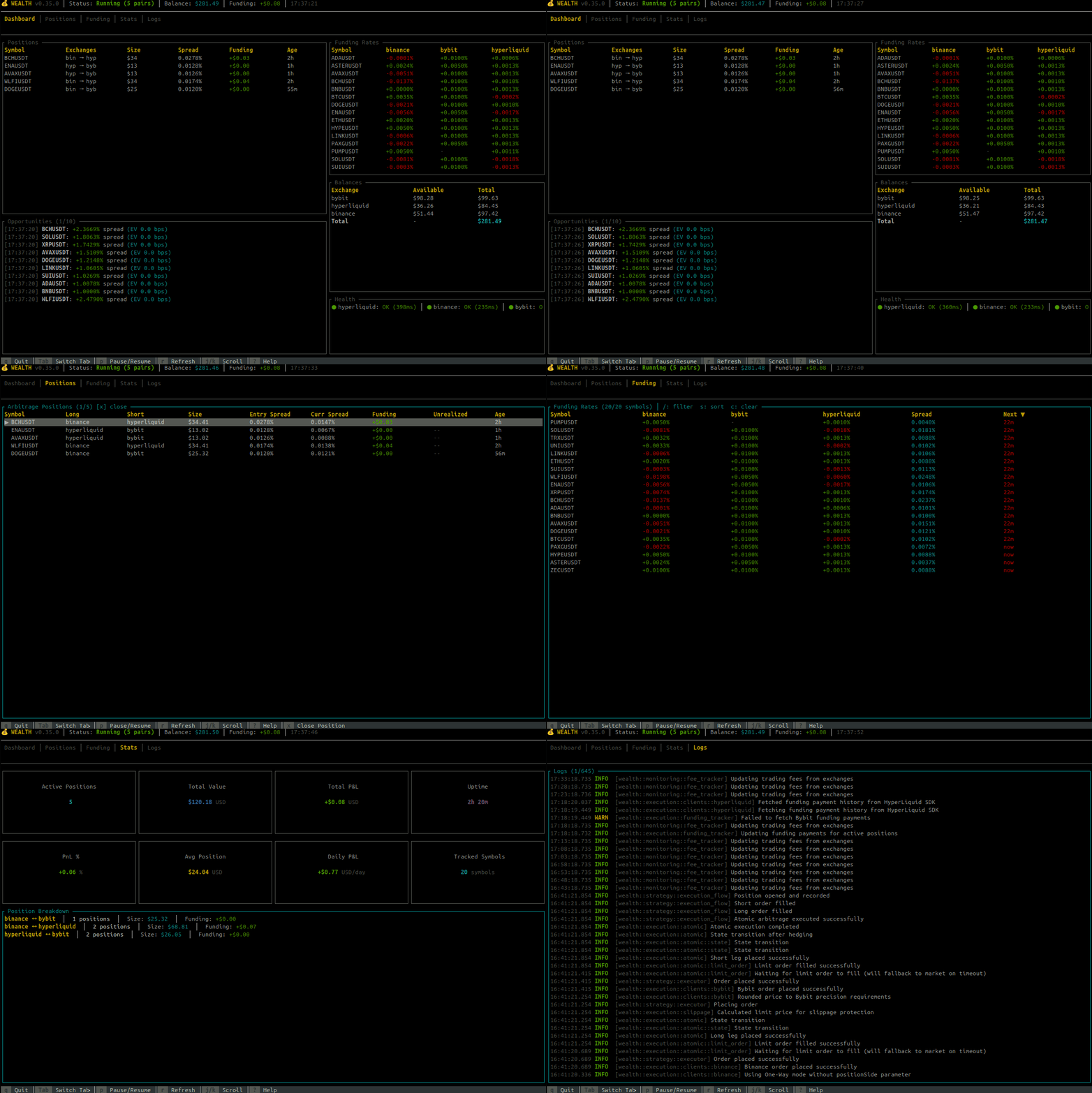
Usage:
wealth dashboard [OPTIONS]
Options:
--enable-discovery     # Enable dynamic pair discovery
--tick-rate <MS>       # UI refresh rate in milliseconds (default: 250)
Examples:
# Run with TUI dashboard (default settings)
wealth dashboard

# Enable dynamic pair discovery
wealth dashboard --enable-discovery

# Slower refresh rate (for remote connections)
wealth dashboard --tick-rate 500
📖 See TUI Dashboard Guide for full documentation including keybindings, tabs, and troubleshooting.
wealth verify - Verify Configuration
✅ Status: Fully implemented
Verify that configuration files and credentials are valid, with optional API validation.
Usage:
wealth verify [OPTIONS]
Options:
--check-credentials    # Make test API calls to verify credentials work
--encrypted            # Verify encrypted credential decryption
Examples:
# Basic verification
wealth verify

# Verify with real API calls (recommended)
wealth verify --check-credentials

# Verify encrypted credentials (will prompt for passphrase if not set)
wealth verify --encrypted --check-credentials
# 🔐 Enter credentials passphrase: ********

# Or set env var to skip prompt
export CREDENTIALS_PASSPHRASE="your_passphrase"
wealth verify --encrypted --check-credentials
Output Format:
🔍 Configuration Verification

✅ Configuration file loaded successfully
✅ Strategy parameters validated
✅ Instruments configured: 3

🔐 Credential Verification:
  ✅ BinanceFutures: Valid (API call successful)
  ✅ BybitPerpetualsUsd: Valid (API call successful)
  ✅ HyperLiquid: Valid (API call successful)

All checks passed!
wealth config - Display Configuration
Show current configuration settings.
Usage:
wealth config [OPTIONS]
Options:
--strategy       # Show only strategy configuration
--execution      # Show only execution configuration
--credentials    # Show credential status (redacted)
--validate       # Validate configuration file
--show-sources   # Show configuration sources (defaults, file, env vars)
Examples:
# Show all configuration
wealth config

# Validate configuration
wealth config --validate

# Debug configuration with source tracking
wealth config --show-sources
Sample Output (with --show-sources):
📋 Configuration Sources

Shows: default → file (config.toml) → env vars → ✓ final value

🎯 Trading Configuration:
  min_funding_spread:
    default:  0.0004
    file:     0.0005
    env:      0.0006
    ✓ final:  0.0006 ← using environment override

  max_position_usd:
    default:  10000
    ✓ final:  10000 ← using default
wealth license - Check License Status
✅ Status: Fully implemented
Check license status, validate connectivity, and show machine fingerprint for support.
Subcommands
check - Check License Status
wealth license check
Displays:
- License configuration (account, product)
- Machine fingerprint
- License validity status
- Expiration information (if available)
Example Output:
📋 License Information:
   Account:     fcaa9cfa-8236-4270-81b6-da3ddd238d70
   Product:     6f04c081-10d2-4222-8310-b314d82ac410
   Machine ID:  a1b2c3d4-e5f6-7890-abcd-ef1234567890

✅ License is valid!
show-fingerprint - Show Machine Fingerprint
wealth license show-fingerprint
Displays your machine's unique identifier. Use this when:
- Contacting support about licensing issues
- Requesting additional machine activations
- Troubleshooting activation problems
Example Output:
📌 Machine ID: a1b2c3d4-e5f6-7890-abcd-ef1234567890

This unique identifier is used to activate your license on this machine.
Share this ID with support when requesting license assistance.

License Status: ✅ Configured
Account: fcaa9cfa-8236-4270-81b6-da3ddd238d70
validate - Validate License Connectivity
wealth license validate
Performs comprehensive license validation:
- Tests connection to Keygen API
- Validates license configuration
- Checks machine activation status
- Provides detailed error messages with troubleshooting guidance
Example Output (Success):
🔍 Configuration:
   Account:  fcaa9cfa-8236-4270-81b6-da3ddd238d70
   Product:  6f04c081-10d2-4222-8310-b314d82ac410
   API URL:  https://api.keygen.sh

🖥️  Machine ID: a1b2c3d4-e5f6-7890-abcd-ef1234567890

📡 Connecting to Keygen API...
✅ License validation successful!

Your license is active and this machine is properly configured.
Example Output (Error with Guidance):
❌ License validation failed: Network error contacting license server

💡 Network Issue:
   - Check internet connectivity
   - Verify firewall allows HTTPS to api.keygen.sh
   - Check proxy configuration if applicable
Environment Variables:
WEALTH__LICENSING__LICENSE_KEY- Your license key (required)WEALTH__LICENSING__API_URL- Custom Keygen API URL (optional, debug builds only)
deactivate - Deactivate License from Current Machine
wealth license deactivate --confirm
Deactivates your license from the current machine, allowing you to transfer it to another machine.
Use Cases:
- Migrating to a new server
- Replacing hardware
- Switching between development and production machines
- Freeing up a machine activation slot
Safety Features:
- Requires
--confirmflag to prevent accidental deactivation - Shows warning and confirmation prompt without flag
- Verifies license status before deactivation
- Provides clear next steps after deactivation
Example Usage:
# Show warning and instructions (safe dry-run)
wealth license deactivate

# Actually deactivate (requires confirmation)
wealth license deactivate --confirm
Example Output (Dry-Run):
⚠️  License Deactivation

This will deactivate your license from this machine.
You can reactivate it on another machine by running the bot there.

To confirm, run:
  wealth license deactivate --confirm
Example Output (Successful Deactivation):
📋 Deactivation Details:
  Account:     fcaa9cfa-8236-4270-81b6-da3ddd238d70
  Product:     6f04c081-10d2-4222-8310-b314d82ac410
  Machine ID:  a1b2c3d4-e5f6-7890-abcd-ef1234567890

🔍 Finding machine activation...
✅ License found: lic_1234567890

✅ License deactivated successfully!

📦 Your license is now available for activation on another machine.
  To activate on a new machine:
  1. Copy your license key to the new machine
  2. Set WEALTH__LICENSING__LICENSE_KEY environment variable
  3. Run: wealth run
  (The license will activate automatically)
Example Output (Already Deactivated):
ℹ️  License is not currently activated on this machine.

No action needed - you can activate on another machine anytime.
Error Handling:
- Invalid license key → Clear error message
- Network issues → Troubleshooting guidance
- Already deactivated → Informational message
- License not found → Verification steps
Environment Variables:
WEALTH__LICENSING__LICENSE_KEY- Your license key (required)
Notes:
- Deactivation is immediate and cannot be undone
- After deactivation, simply run the bot on a new machine to reactivate
- No limit on number of deactivations/reactivations
- Your license key remains valid after deactivation
Related Documentation:
- Licensing Guide - Complete licensing documentation
- Troubleshooting - Common licensing issues
wealth credentials - Manage Encrypted Credentials
Manage encrypted credential storage.
Subcommands
create - Create New Encrypted Config
wealth credentials create
Creates .credentials.salt and credentials.encrypted.json files.
add - Add Exchange Credentials
wealth credentials add <EXCHANGE> [OPTIONS]
Arguments:
<EXCHANGE>- Exchange name (binance, bybit, hyperliquid, aster)
Options:
--api-key <KEY>- API key (or master wallet/vault address for HyperLiquid)--secret-key <KEY>- Secret key (or API wallet private key for HyperLiquid)--testnet- Use testnet mode--vault-mode- HyperLiquid only: Enable vault mode (API_KEY is vault address)
Security Recommendation:
For maximum security, omit the --api-key and --secret-key options to use interactive prompts. This prevents secrets from appearing in shell history.
# Recommended: Interactive mode (secrets not in shell history)
wealth credentials add binance
# Prompts for:
#   Enter API key: <your-api-key>
#   Enter secret key (hidden): <your-secret-key>

# Less secure: CLI arguments (visible in shell history)
wealth credentials add binance --api-key YOUR_API_KEY --secret-key YOUR_SECRET_KEY
HyperLiquid Examples:
# Direct wallet mode (simplest) - interactive
wealth credentials add hyperliquid
# API key: 0xYourWalletAddress
# Secret key: 0xYourPrivateKey

# API wallet (subkey) mode (recommended) - interactive
wealth credentials add hyperliquid
# API key: 0xYourMasterWalletAddress
# Secret key: 0xAPIWalletPrivateKey

# Vault mode - interactive
wealth credentials add hyperliquid --vault-mode
# API key: 0xVaultAddress
# Secret key: 0xAPIWalletPrivateKey
verify - Verify Encrypted Credentials
wealth credentials verify
# 🔐 Enter credentials passphrase: ********
You'll be prompted for the passphrase interactively, or set CREDENTIALS_PASSPHRASE environment variable to skip the prompt.
list - List Configured Exchanges
wealth credentials list
remove - Remove Credentials
wealth credentials remove <EXCHANGE> --confirm
Safety: Requires --confirm flag.
wealth health - System Health Checks
✅ Status: Fully implemented
Check system health including exchange connectivity, WebSocket connections, and data freshness.
Usage:
wealth health [OPTIONS]
Options:
--exchanges     # Check exchange API connectivity (validates credentials)
--websockets    # Check WebSocket connectivity
--all           # Run all health checks
Examples:
# Check all health indicators
wealth health --all

# Check only exchange connectivity
wealth health --exchanges

# Check only WebSocket connections
wealth health --websockets
Output Format:
🏥 Health Check

📡 Exchange API Connectivity:
  🟡 BinanceFutures ... ✅ OK (142ms)
  🟠 BybitPerpetualsUsd ... ✅ OK (98ms)
  🔵 HyperLiquid ... ✅ OK (76ms)

  Summary: 3/3 exchanges accessible

🔌 WebSocket Connectivity:
  ⚠️  WebSocket health checks require running bot instance
  💡 Tip: Use 'curl http://localhost:9090/ready' while bot is running

✅ Health check complete
wealth balance - Display Account Balances
✅ Status: Fully implemented
Usage:
wealth balance [OPTIONS]
Options:
--exchange <NAME>    # Filter by exchange (binance, bybit, hyperliquid, aster)
--total              # Show total USD equivalent balance
--detailed           # Show detailed asset breakdown with total and free balances
Examples:
# View all balances
wealth balance

# View specific exchange
wealth balance --exchange binance

# Show total USD equivalent
wealth balance --total

# Detailed breakdown
wealth balance --detailed
Output Format:
💰 Account Balances

📈 BinanceFutures
  USDT: 5000.00

📈 BybitPerpetualsUsd
  USDT: 3000.00

━━━━━━━━━━━━━━━━━━━━━━━━━━━━━━━━━━━━━━━━
💵 Total Available (USDT equivalent): $8000.00
wealth positions - Display Current Positions
✅ Status: Fully implemented
Display current open positions across exchanges with funding rates and projected PnL. Automatically uses the bot's HTTP API when running for fast access to in-memory state.
Usage:
wealth positions [OPTIONS]
Options:
--exchange <NAME>    # Filter by exchange (binance, bybit, hyperliquid, aster)
--pnl                # Show P&L summary for all positions
--funding            # Show detailed funding rate breakdown
Smart Data Fetching:
- Bot running: Uses
/api/positionsand/api/funding_rates(fast, no API quota) - Bot not running: Queries exchanges directly (slower, uses API quota)
- API port is configurable (default: 9090, set via
WEALTH__OBSERVABILITY__METRICS_PORT)
Examples:
# View all positions (uses API if bot running)
wealth positions

# View positions on specific exchange
wealth positions --exchange binance

# Show detailed funding breakdown
wealth positions --funding

# Show with P&L summary
wealth positions --pnl

# Combine funding and P&L
wealth positions --funding --pnl
Output Format:
Positions table now includes funding rate information by default:
📊 Current Positions

  🔗 Using live data from running bot instance

# OR (if bot not running):

📊 Current Positions

  📡 Querying exchanges directly (bot not running or API unavailable)

╭──────────┬──────────┬───────┬────────┬─────────────┬────────────┬────────────────┬──────────────┬──────────╮
│ Exchange │ Symbol   │ Side  │ Size   │ Entry Price │ Mark Price │ Unrealized PnL │ Funding Rate │ Est. 8h  │
├──────────┼──────────┼───────┼────────┼─────────────┼────────────┼────────────────┼──────────────┼──────────┤
│ binance  │ BTCUSDT  │ LONG  │ 0.1000 │ $95000.00   │ $96000.00  │ $100.00        │ 0.0100%      │ -9.50    │
│ bybit    │ BTCUSDT  │ SHORT │ 0.1000 │ $95200.00   │ $96000.00  │ -$80.00        │ 0.0150%      │ +14.28   │
╰──────────┴──────────┴───────┴────────┴─────────────┴────────────┴────────────────┴──────────────┴──────────╯
Columns:
- Exchange: Exchange name
- Symbol: Trading pair
- Side: LONG or SHORT
- Size: Position size in base asset
- Entry Price: Average entry price
- Mark Price: Current mark price
- Unrealized PnL: Unrealized profit/loss
- Funding Rate: Current funding rate percentage
- Est. 8h: Estimated funding payment in next 8h (+ = receive, - = pay)
With --funding flag:
Additional detailed summary section:
📈 Summary:
  Total Long Notional:  $9600.00
  Total Short Notional: $9600.00
  Net Exposure:         $0.00

💰 Funding Rate PnL (Projected):
  binance BTCUSDT LONG: 0.0100% → -$9.50 USD (next 8h)
  bybit BTCUSDT SHORT: 0.0150% → +$14.28 USD (next 8h)

  Projected Next 8h:    +$4.78 USD
  Est. Daily Projected: +$14.34 USD (3 payments/day)

💹 Funding Collected (Actual):
  BTCUSDT (binance ↔ hyperliquid): +$15.50 (held 2d 5h)
  ETHUSDT (bybit ↔ binance): +$8.25 (held 1d 12h)

  Total Funding Collected: +$23.75
Funding PnL Details:
- Projected: Estimated funding payment for next 8h period based on current rates
- Actual (Collected): Real funding fees collected from active arbitrage positions (requires bot to be running)
- Long positions pay funding when rate is positive (negative PnL)
- Short positions receive funding when rate is positive (positive PnL)
- Funding collected is tracked by the bot's
FundingTrackerbackground task
Note:
- Position data fetched from bot's API or directly from exchange APIs
- Funding rates always displayed in table for immediate visibility
- Use
--fundingflag for detailed breakdown and projections
wealth funding - Display Funding Rates
✅ Status: Fully implemented
Display current funding rates, spreads, and calculate funding PnL for active positions.
Usage:
wealth funding [OPTIONS]
Options:
--symbol <SYMBOL>    # Filter by specific symbol (e.g., BTCUSDT)
--spreads            # Show funding rate spreads between exchanges
--pnl                # Show PnL from funding rates for current positions
--history            # Show historical funding rates (not yet implemented)
Note: The
--historyflag is reserved for future implementation of historical funding rate analysis.
Examples:
# View all funding rates
wealth funding

# View funding rate for specific symbol
wealth funding --symbol BTCUSDT

# Show spreads between exchanges
wealth funding --spreads

# Show funding rate PnL for current positions
wealth funding --pnl

# Combine spreads and PnL
wealth funding --spreads --pnl
Output Format:
📈 Funding Rates

┌─────────────┬───────────────┬────────────┬──────────────────────┐
│ Symbol      │ Exchange      │ Rate       │ Next Funding         │
├─────────────┼───────────────┼────────────┼──────────────────────┤
│ BTCUSDT     │ Binance       │    0.0100% │ in 5h 23m            │
│ BTCUSDT     │ Bybit         │    0.0500% │ in 5h 23m            │
│             │ Spread: 0.0400% (Bybit - Binance)                  │
└─────────────┴───────────────┴────────────┴──────────────────────┘

💰 Funding Rate PnL:
  Binance BTCUSDT LONG (0.5000 @ $95000.00): 0.0100% → -$4.75 USD (8h)
  Bybit BTCUSDT SHORT (0.5000 @ $95000.00): 0.0500% → +$23.75 USD (8h)

  Net 8h Funding:       +$19.00 USD
  Est. Daily Funding:   +$57.00 USD (3 payments/day)
  Est. Monthly Funding: +$1710.00 USD (30 days)
PnL Calculation:
- Long positions: Pay funding when rate is positive (cost), receive when negative (income)
- Short positions: Receive funding when rate is positive (income), pay when negative (cost)
- Formula:
funding_payment = notional_value × funding_rate / 100 - Notional value:
position_size × entry_price
Note: The --pnl flag fetches both funding rates and current positions from all configured exchanges to calculate expected funding payments.
wealth close - Close Positions
✅ Status: Fully implemented
Close open positions on exchanges with reduce-only market orders.
Usage:
wealth close [OPTIONS] --confirm
Options:
--exchange <NAME>    # Close positions on specific exchange (binance, bybit, hyperliquid, aster)
--symbol <SYMBOL>    # Close positions for specific symbol (e.g., BTCUSDT)
--all                # Close all positions (if --symbol not specified)
--confirm            # Required confirmation flag (safety)
Examples:
# Close all positions on Binance
wealth close --exchange binance --all --confirm

# Close specific symbol on all exchanges
wealth close --symbol BTCUSDT --all --confirm

# Close all positions on all exchanges
wealth close --all --confirm

# Close specific symbol on specific exchange
wealth close --exchange bybit --symbol ETHUSDT --confirm
Output Format:
🔴 Closing Positions

📊 Checking BinanceFutures positions...
  Found 2 position(s) to close:
    BTCUSDT Long 0.1 @ 35000.00 (PnL: $125.50)
      ✅ Closed (Order ID: 12345678)
    ETHUSDT Short 2.0 @ 2000.00 (PnL: $45.20)
      ✅ Closed (Order ID: 12345679)

━━━━━━━━━━━━━━━━━━━━━━━━━━━━━━━━━━━━━━━━
✅ Successfully closed: 2
Safety Features:
- Requires
--confirmflag for all operations - Uses reduce-only market orders (never increases position)
- Skips dust positions automatically
- Detailed error reporting per position
Note: This command fetches current positions from exchanges and closes them immediately. For graceful shutdown with automatic position closing, use Ctrl+C instead.
wealth stats - Trading Statistics
✅ Status: Fully implemented
Display trading performance statistics from the in-memory performance history repository.
Usage:
wealth stats [OPTIONS]
Options:
--period <PERIOD>    # Time period: 1h, 24h, 7d, 30d, 90d, all (default: 24h)
--detailed           # Show detailed breakdown with recent trades
Examples:
# View last 24 hours (default)
wealth stats

# View last 7 days
wealth stats --period 7d

# View all-time with details
wealth stats --period all --detailed
Output Format:
📊 Trading Statistics

  📅 Period: Last 7 Days (2025-11-07 10:00 - 2025-11-14 10:00)

  📈 Performance Summary:
     Total Trades: 42
     Winning Trades: 35 (83%)
     Losing Trades: 7
     Total P&L: $1,234.56
     Avg Win: $52.30
     Avg Loss: -$12.45
     Sharpe Ratio: 2.15

  � Recent Trades: (with --detailed)
     1. ✅ BTCUSDT → 2025-11-14 09:45 | $65.23 | WIN
     2. ✅ ETHUSDT → 2025-11-14 08:30 | $42.10 | WIN
     ...
Note: Data is collected while the bot is running from the InMemoryPerformanceHistoryRepository. Not persisted between restarts.
Important: Data Availability
The stats command displays data from an in-memory performance history repository. This has important implications:
- Data is not persisted: Trade statistics are stored in memory and reset when the bot restarts
- CLI creates new instance: Each CLI command creates a fresh, empty repository instance
- Bot must be running: To see meaningful data, the bot must be actively running and have executed trades
- Consider external monitoring: For persistent statistics, use the Prometheus metrics endpoint with Grafana or similar tools
If you see "No trading history found", this is expected behavior – it means:
- The bot hasn't executed any trades in the specified period, OR
- The bot was restarted (clearing in-memory history), OR
- You're running the CLI while the bot is stopped
wealth profit - Total Profit Tracking
✅ Status: Fully implemented
Display cumulative profit/loss tracking with realized and unrealized PnL.
Usage:
wealth profit [OPTIONS]
Options:
--period <PERIOD>         # Time period: 1h, 24h, 7d, 30d, 90d, all (default: all)
--by-exchange             # Show breakdown by exchange
--by-symbol               # Show breakdown by symbol
--include-unrealized      # Include unrealized PnL from open positions
Examples:
# View all-time profit (default)
wealth profit

# View last 7 days with exchange breakdown
wealth profit --period 7d --by-exchange

# View total profit including unrealized PnL
wealth profit --include-unrealized

# Detailed view with all breakdowns
wealth profit --by-exchange --by-symbol --include-unrealized
Output Format:
💰 Profit Tracking

  📅 Period: All Time (1970-01-01 00:00 - 2025-11-28 12:00)

  📊 Realized Profit/Loss (Closed Positions):
     Total Trades: 156
     Total Realized PnL: $2847.92

  📈 Breakdown by Exchange: (with --by-exchange)
     binance (LONG): +$1523.45
     hyperliquid (SHORT): +$1324.47
     ...

  📈 Breakdown by Symbol: (with --by-symbol)
     BTCUSDT: +$1245.30
     ETHUSDT: +$892.15
     SOLUSDT: +$710.47

  💹 Funding Rate Profit/Loss (Active Positions):
     Active Arbitrage Pairs: 3
     Total Funding Collected: +$156.78

     Per-Position Breakdown: (with --by-symbol)
       BTCUSDT (binance ↔ hyperliquid): +$85.50
       ETHUSDT (bybit ↔ binance): +$45.28
       SOLUSDT (binance ↔ hyperliquid): +$26.00

  📊 Unrealized Profit/Loss (Open Positions): (with --include-unrealized)
     Open Positions: 4
     Total Unrealized PnL: $123.45
       binance BTCUSDT LONG: +$45.20
       hyperliquid BTCUSDT SHORT: +$78.25

  💵 Total Profit/Loss:
     Realized PnL:       $2847.92
     Funding Collected:  $156.78
     Unrealized PnL:     $123.45
     ─────────────────────────────
     Total PnL:          +$3128.15
Notes:
- Realized PnL comes from
InMemoryPerformanceHistoryRepository(closed trades) - Funding Collected shows actual funding fees received from active arbitrage positions (requires bot to be running)
- Important: The CLI creates a new repository instance, so it will show zero trades unless the bot is configured with persistent storage that the CLI can access
- Unrealized PnL requires bot to be running (fetched via API)
- Data is collected during bot runtime and not persisted between restarts
- Use
--include-unrealizedto see current position PnL - Exchange breakdown splits PnL equally (50/50) between long and short legs of arbitrage pairs
Data Availability Summary:
| Data Type | Bot Running | Bot Stopped |
|---|---|---|
| Realized PnL | Shows current session trades | Always $0.00 |
| Funding Collected | Shows actual funding fees | "Bot not running" message |
| Unrealized PnL | Shows live position PnL | "Bot not running" message |
For persistent profit tracking across restarts, consider:
- Using Grafana dashboards with Prometheus metrics (recommended)
- Implementing external trade logging
wealth completions - Generate Shell Completions
✅ Status: Fully implemented
Usage:
wealth completions <SHELL>
Supported Shells: bash, zsh, fish, powershell, elvish
Installation Examples:
Bash:
wealth completions bash > ~/.local/share/bash-completion/completions/wealth
# OR
echo 'source <(wealth completions bash)' >> ~/.bashrc
Zsh:
mkdir -p ~/.zfunc
wealth completions zsh > ~/.zfunc/_wealth
echo 'fpath=(~/.zfunc $fpath)' >> ~/.zshrc
Fish:
wealth completions fish > ~/.config/fish/completions/wealth.fish
wealth init - Initialize Configuration
✅ Status: Fully implemented
Generate a new configuration file from the embedded example template. This is the recommended way to create your initial config.toml.
Usage:
wealth init [OPTIONS]
Options:
-o, --output <FILE>    # Output path (default: config.toml)
--force                # Overwrite existing file without prompting
Examples:
# Create config.toml in current directory
wealth init

# Create with custom filename
wealth init -o config.production.toml

# Create in subdirectory (creates parent dirs if needed)
wealth init -o configs/my-config.toml

# Overwrite existing config
wealth init --force
Output:
✓ Created configuration file: config.toml

Next steps:
  1. Edit config.toml to configure your trading parameters
  2. Set up credentials: wealth credentials create
  3. Verify setup: wealth verify --check-credentials
  4. Start trading: wealth run
Notes:
- The example configuration is embedded in the binary at compile time
- Creates parent directories automatically if they don't exist
- Fails safely if file exists (use
--forceto overwrite) - Generated config includes all available options with documentation comments
Configuration
Custom Config Files
# Use custom configuration file
wealth run --config config.production.json
Environment Variables
All CLI options can be set via environment variables:
export WEALTH__EXECUTION__MODE=live
export WEALTH__OBSERVABILITY__METRICS_PORT=8080
wealth run
Logging Levels
# Default: INFO level
wealth run

# Debug level
wealth run --verbose

# Trace level
wealth run --trace

# Via environment
export RUST_LOG=debug
wealth run
Exit Codes
0- Success1- General error2- Configuration error130- Interrupted by Ctrl+C (graceful shutdown)
See Also
- HTTP API Reference - REST API for automation and scripting
- Configuration Guide - Environment variables and settings
- Security Guide - Encrypted credentials management
- Getting Started - Installation and first run